
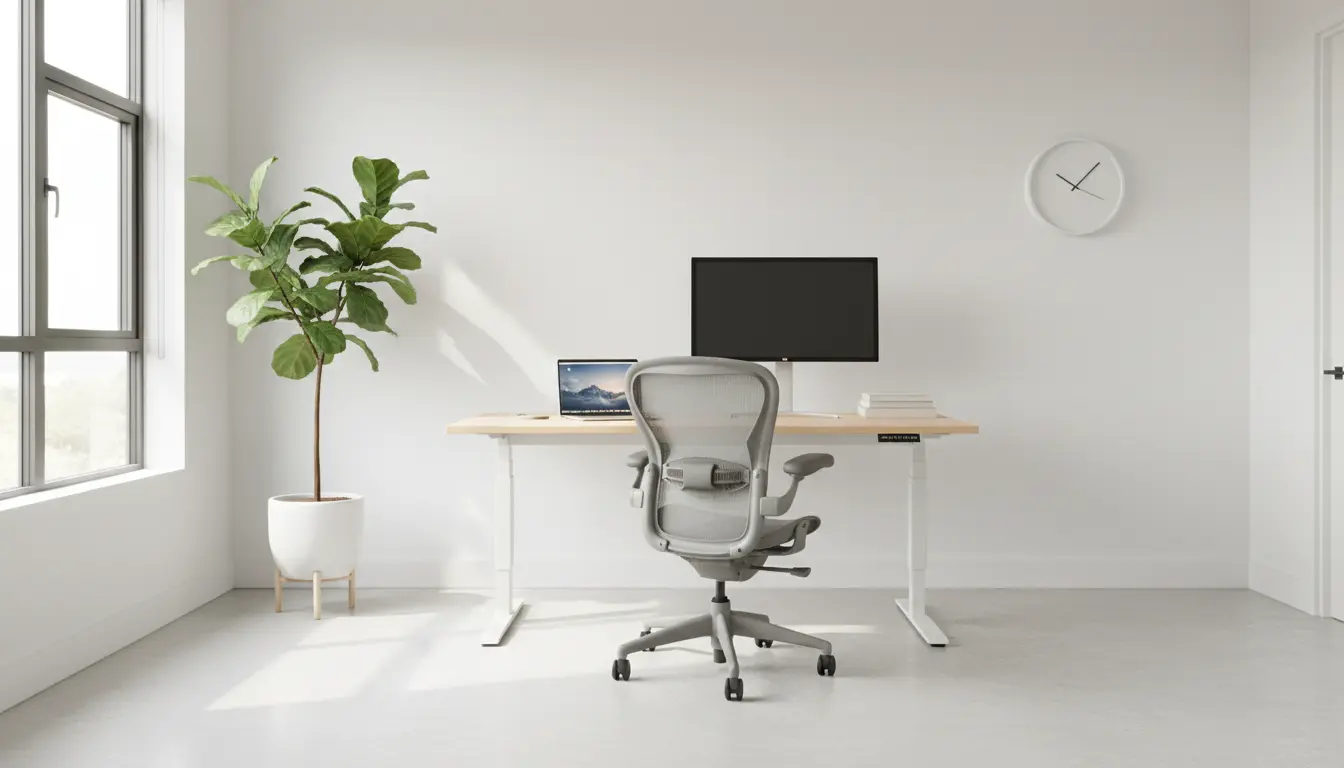
Why Home Office Ergonomics Matters
Home office ergonomics affects comfort, productivity, and long-term health. A poorly arranged workspace can cause neck, back, and wrist pain after just a few weeks.
Small adjustments to chair height, monitor level, and keyboard position reduce strain and help you work longer with fewer breaks.
Home Office Ergonomics: Quick Assessment Checklist

Start with a simple assessment to find the biggest problems. This helps prioritize changes that give the most benefit quickly.
- Chair supports the lower back and allows feet to rest flat on the floor.
- Top of the monitor is at or slightly below eye level.
- Elbows rest at about a 90-degree angle while typing.
- Wrists remain neutral, not bent up or down.
- Lighting reduces glare and prevents eye strain.
Home Office Ergonomics: Chair and Seating
The chair is the foundation of a good ergonomic setup. Choose a chair that supports the lumbar curve and offers height adjustment.
If your chair lacks lumbar support, add a small cushion or a rolled towel for lower back support. Make sure hips are slightly higher than knees for better posture.
Chair Adjustment Tips for Home Office Ergonomics
- Height: Feet flat on the floor or a footrest; knees at hip level or slightly lower.
- Backrest: Recline 100–110 degrees to reduce pressure on discs.
- Armrests: Adjust so shoulders stay relaxed and elbows close to the body.
Home Office Ergonomics: Desk, Monitor, and Screen Position

Monitor placement is critical for neck comfort. Position the monitor about an arm’s length away to avoid leaning forward.
Use monitor risers or a stack of books if your screen is too low. For dual monitors, place the primary one directly in front of you.
Screen and Desk Setup Checklist
- Top of the monitor at or slightly below eye level.
- Screen distance roughly 20–30 inches (arm’s length).
- Desk height allows forearms to rest parallel to the floor.
Home Office Ergonomics: Keyboard and Mouse
Keyboard and mouse placement affects wrist and shoulder comfort. Keep them within easy reach to avoid overreaching.

Consider an external keyboard and mouse if you use a laptop. A keyboard tray can help keep wrists neutral and elbows close to the body.
Keyboard and Mouse Tips
- Use a split or curved keyboard if you experience wrist pain.
- Keep the mouse close to the keyboard; use a wrist rest only for breaks, not while typing.
- Use keyboard shortcuts to reduce repetitive mouse use.
Home Office Ergonomics: Lighting and Screen Habits
Good lighting reduces eye strain and prevents awkward postures caused by leaning forward. Position your desk to use natural light without glare on the screen.
Adjust screen brightness to match room light, and use blue-light filters in the evening to support sleep cycles.
Home Office Ergonomics: Movement and Breaks
Sitting still for long periods is a major risk, even with good ergonomics. Plan short movement breaks every 30–60 minutes to reduce stiffness.
Simple micro-breaks like standing, walking for a few minutes, or doing a quick stretch reset posture and improve circulation.
Recommended Movement Routine
- Every 30 minutes: stand and stretch for 30–60 seconds.
- Every hour: walk for 3–5 minutes and rotate shoulder joints.
- Every 90–120 minutes: do a 5–10 minute mobility or posture routine.
Alternating between sitting and standing throughout the day can reduce lower back pain and improve focus. Use a sit stand ratio of about 1:3 to start — stand 15 minutes every hour of sitting.
Home Office Ergonomics: Affordable Tools and Upgrades
Improving ergonomics doesn’t require expensive equipment. Small purchases can yield big improvements in comfort and productivity.
- Monitor riser or simple stack of books.
- Adjustable laptop stand and external keyboard.
- Footrest to support feet when chair height is high.
- Gel wrist rests for occasional relief (avoid continuous reliance).
Real-World Example: Small Business Owner Case Study
Jamal runs an online marketing business from a spare room. He experienced neck pain and afternoon fatigue after long work sessions.
After a quick assessment, he raised his monitor on a riser, added lumbar support with a cushion, and bought an external keyboard. He also set a timer to stand every 45 minutes.
Within two weeks Jamal reported less neck tension and fewer headaches. His productivity improved because he needed fewer breaks for discomfort.
Home Office Ergonomics: Troubleshooting Common Problems
If you still have pain after adjustments, isolate the symptom and test changes one at a time. For example, if wrist pain persists, test a different mouse or keyboard layout for two weeks.
Seek professional help if pain is severe, persistent, or affects daily activities. Physical therapists can prescribe targeted exercises and confirm correct posture.
Final Checklist for Better Home Office Ergonomics
- Chair supports lower back and allows feet to rest flat.
- Monitor at eye level and about an arm’s length away.
- Keyboard and mouse positioned to keep wrists neutral.
- Adjust lighting to minimize glare and eye strain.
- Move regularly with short standing or walking breaks.
Applying these home office ergonomics practices takes small, consistent changes. Start with the checklist, test one adjustment at a time, and track how you feel over two weeks to measure improvements.