
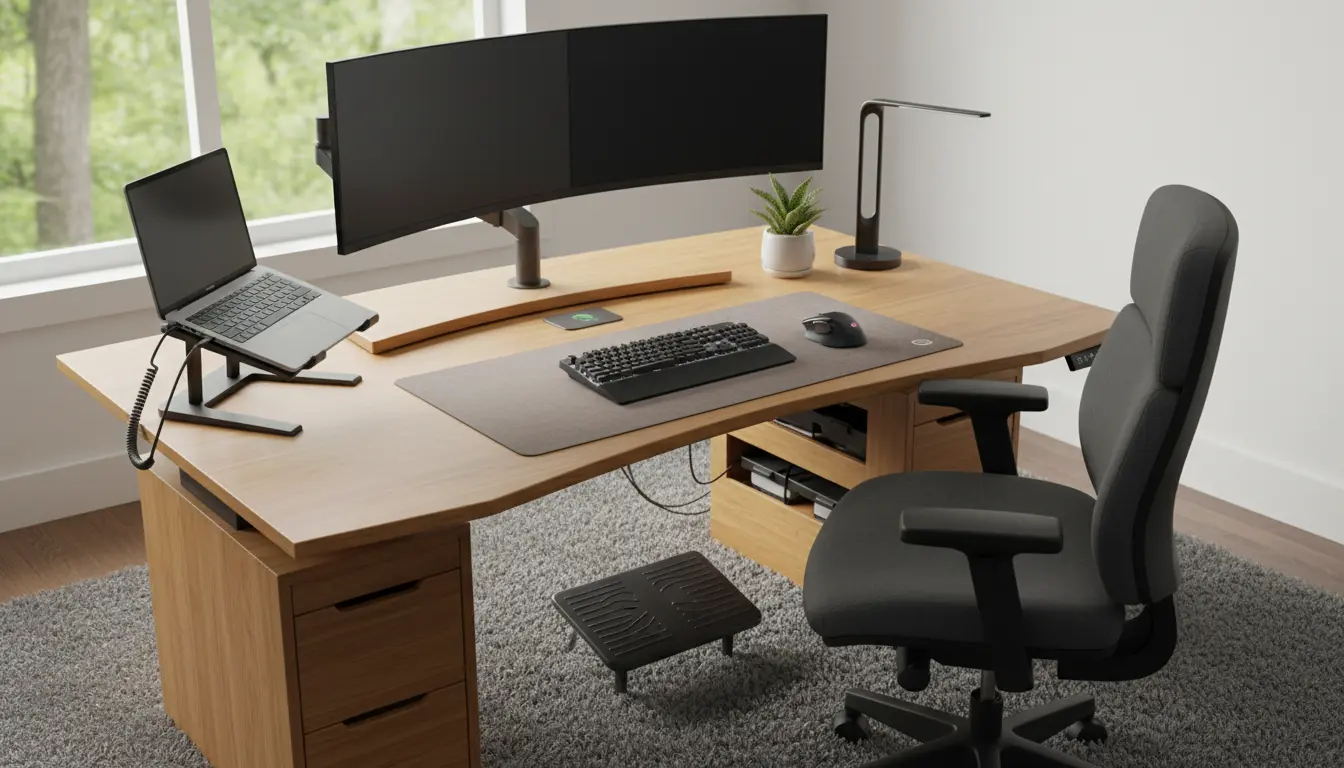
Working from home means you control your environment, but many people ignore small choices that cause discomfort and lower productivity. This guide explains simple, evidence-based Home Office Ergonomics adjustments you can make with minimal cost.
Home Office Ergonomics: Core Principles
Ergonomics focuses on matching your workspace to your body to reduce strain and fatigue. Small adjustments to posture, equipment, and routines often produce the biggest benefits.

Follow the three core principles: neutral posture, support, and movement. Neutral posture keeps joints aligned; support provides stable contact points; movement prevents stiffness.
Neutral Posture for Home Office Ergonomics
Neutral posture means a relaxed spine, level head, and knees slightly lower than hips. Hands and forearms should rest comfortably while typing.
Check these simple markers: feet flat, elbows at about 90 degrees, monitor top at or just below eye level. Small changes can dramatically reduce neck and shoulder pain.
Desk and Monitor Placement for Comfort

Your desk and monitor position directly affect neck and upper back strain. Position screens and peripherals so you don’t lean forward or twist frequently.
- Monitor distance: arm’s length away, roughly 20–30 inches.
- Monitor height: top of screen at or slightly below eye level.
- Multiple monitors: center the primary display and angle secondary screens toward you.
Choosing a Desk for Home Office Ergonomics
Desk height should allow a neutral wrist position while typing. Standard desk heights work for many people, but adjustable desks offer more flexibility.
Consider a sit-stand desk to alternate postures. Standing for short periods reduces sitting time without creating new strain if set up correctly.
Chair and Seating Adjustments

A good chair supports the lower back and promotes a natural spine curve. Adjustability is more important than price for many people.
- Seat height: feet flat on the floor or on a footrest.
- Seat depth: 1–2 inches between the back of the knees and the seat edge.
- Lumbar support: maintain the inward curve of the lower spine.
Simple Chair Hacks
If your chair lacks lumbar support, use a small cushion or rolled towel. A cushion under the feet can improve circulation if your feet don’t reach the floor.
Armrests should support shoulders without pushing them up. Remove or adjust armrests that force awkward shoulder positions.
Keyboard, Mouse, and Input Devices
Input device placement matters. Keep the keyboard and mouse close to avoid reaching, and at a height that keeps wrists straight.
- Use a keyboard tray or adjust desk height so forearms are parallel to the floor.
- Consider ergonomic keyboards or split designs if you have persistent wrist discomfort.
- Use a mouse that fits your hand and place it at the same height as the keyboard.
Tips to Reduce Repetitive Strain
Alternate hands for the mouse when possible and use keyboard shortcuts to minimize mouse use. Small microbreaks reduce cumulative strain over a workday.
Lighting, Glare, and Visual Comfort
Poor lighting causes eye strain and awkward postures as you lean toward the screen. Aim for even, glare-free lighting and position monitors perpendicular to windows.
Adjust screen brightness and use larger text when needed. Consider an anti-glare screen if reflections are unavoidable.
Movement and Breaks
Even the best setup fails without movement. Stand, stretch, or walk briefly every 30–60 minutes to maintain circulation and focus.
- Set a timer or use a break app to remind yourself to move.
- Perform quick stretches: neck rolls, shoulder shrugs, and calf raises.
- Alternate sitting and standing in 20–40 minute cycles when using a sit-stand desk.
Did You Know?
Did you know? Research shows brief standing and movement breaks reduce musculoskeletal discomfort and maintain productivity. Even 2–5 minutes of activity each hour has measurable benefits.
Case Study: Small Changes, Big Results
Jane, a graphic designer, developed neck pain after months of remote work. Her setup included a laptop on a low table and a dining chair.
She raised the laptop to eye level with a riser, added an external keyboard and mouse at elbow height, and placed a small lumbar cushion in her chair. After two weeks of regular microbreaks, her pain reduced significantly and focus improved.
Practical Checklist for Home Office Ergonomics
Use this checklist to evaluate your workspace and make incremental changes.
- Monitor at eye level and arm’s length away.
- Keyboard and mouse close and at elbow height.
- Chair supports lower back and allows feet to rest flat.
- Lighting is even and screen glare minimized.
- Schedule movement and short breaks every hour.
Affordable Upgrades to Consider
Not all solutions are expensive. Simple items often yield the best return on investment.
- External keyboard and mouse — under $50.
- Laptop stand or books to raise screen height.
- Lumbar cushion or rolled towel for lower back support.
- Adjustable monitor arm for flexibility in placement.
Improving Home Office Ergonomics is an ongoing process of small adjustments and listening to your body’s feedback. Start with the checklist, make one change at a time, and track improvements in comfort and productivity.